Oct 29, 2025
By NetRiller Team
How to Use RDP on Windows — A Step-by-Step Guide
Introduction
Remote Desktop (RDP) is built into Windows and provides a familiar, secure remote desktop experience when configured correctly. This guide covers enabling RDP, connecting from other devices, and security hardening.
Enable Remote Desktop (Windows 10 / 11)
- Open Settings > System > Remote Desktop.
- Turn on Remote Desktop and confirm the enable prompt.
- Note the PC name (you will use it to connect).
Allow RDP through Windows Firewall
- Open Control Panel > Windows Defender Firewall > Allow an app or feature through Windows Defender Firewall.
- Ensure Remote Desktop is checked for the network profile you use (Private / Public).
Create a Dedicated Account
For security, create a non-admin user and add it to the Remote Desktop Users group:
net user rdpuser StrongP@ssw0rd! /add

net localgroup "Remote Desktop Users" rdpuser /add
Connecting from another Windows PC
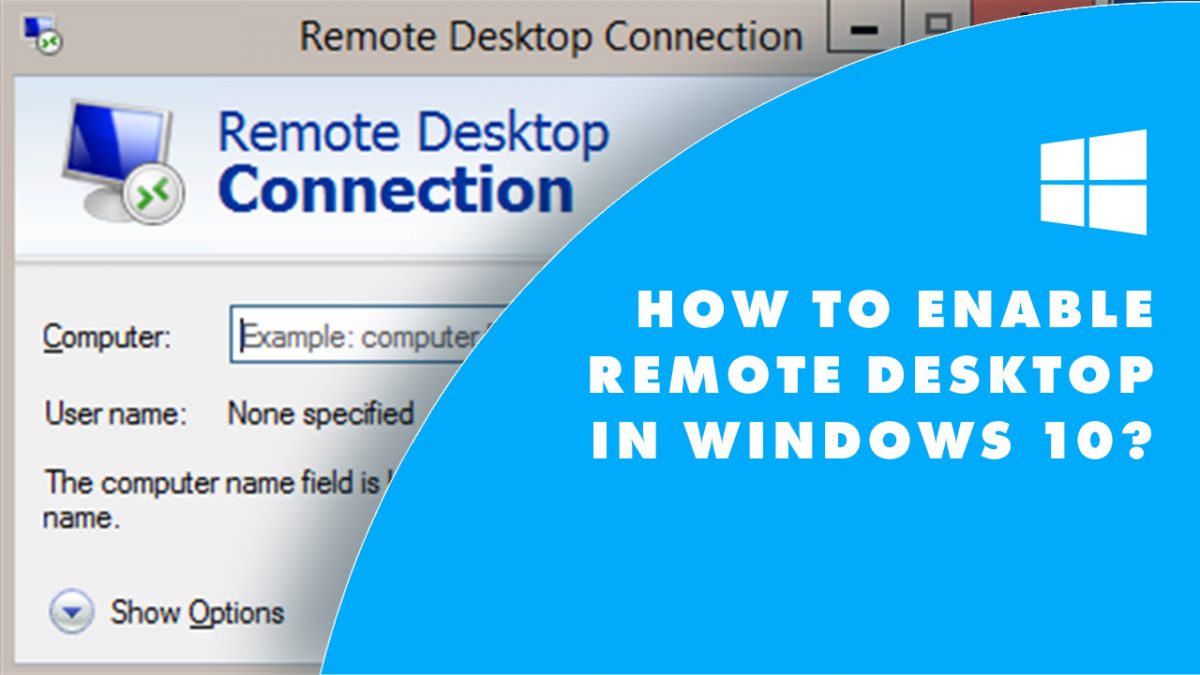
- Open Remote Desktop Connection (mstsc.exe).
- Enter the PC name or IP address and click Connect.
- Log in with the RDP user credentials.
Security Best Practices
- Use strong unique passwords and, where possible, enforce multi-factor authentication (via conditional access / RD Gateway).
- Limit RDP to a private network or tunnel it through a VPN or RD Gateway.
- Change the default RDP listening port only if you understand the implications.
- Keep Windows up to date and enable account lockout policies to prevent brute-force attacks.
Troubleshooting
If you can’t connect: check firewall, ensure network profile is correct, verify the PC name/IP, and confirm the RDP user is allowed.
You Might Also Like
Oct 29, 2025
How to Use RDP on iOS — Microsoft Remote Desktop App
Use the Microsoft Remote Desktop iOS app to connect to Windows and Linux (via xRDP/VNC) — setup, c...
Read More
Oct 29, 2025
How to Connect to a VPS — SSH, RDP, and Best Practices
A practical, professional guide to connect to a VPS: SSH for Linux, RDP for GUI, SSH tunnels, firewa...
Read More
Oct 14, 2025
Boosting Productivity with Multi-Session RDP Servers
Maximize performance and collaboration by enabling multiple users on a single RDP server....
Read More